Product tour
See the whole workflow, step by step.
From connecting your Meraki organisation to an instant restore — and help along the way — here's how ONbackup works.
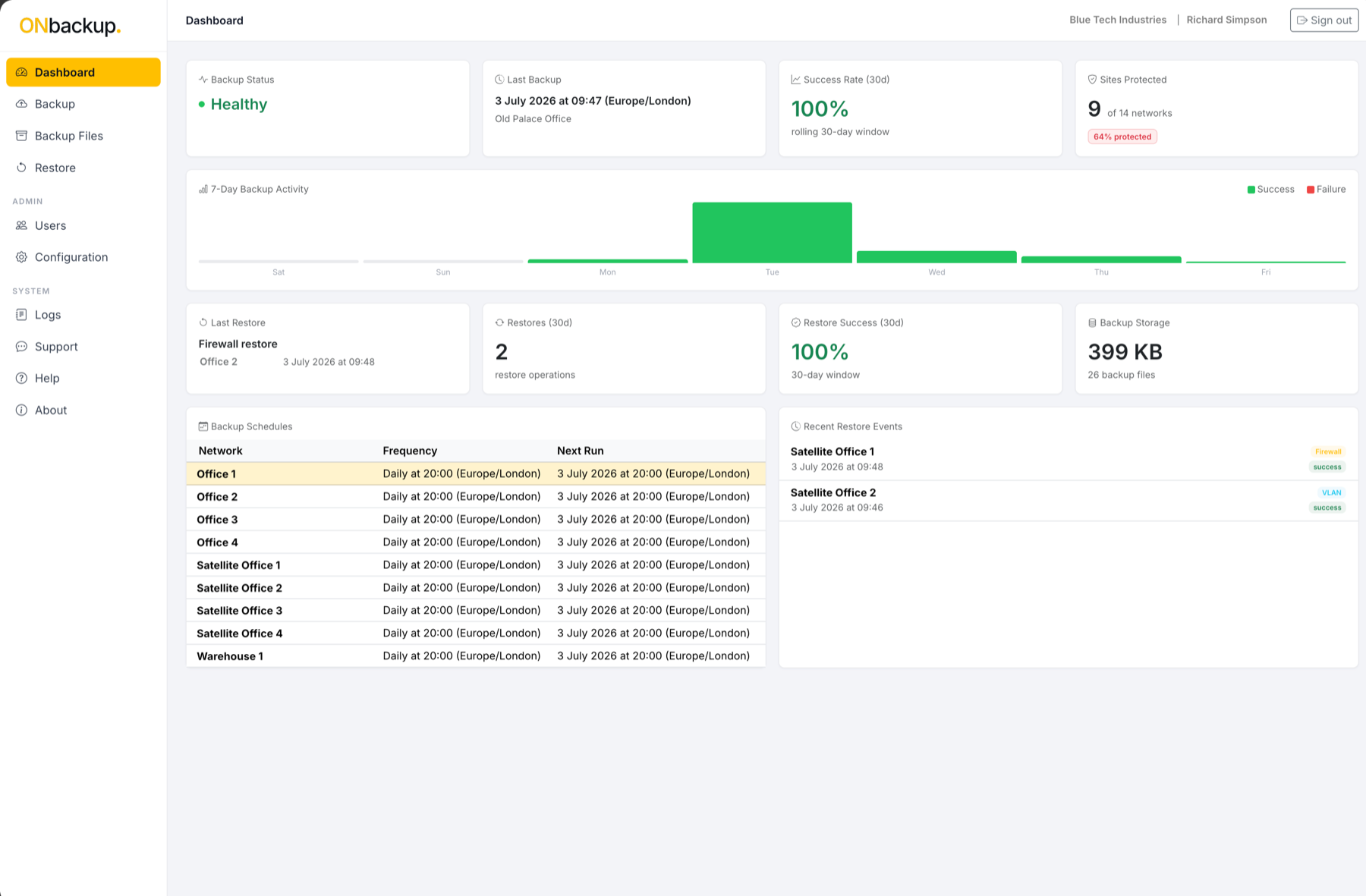
The command centre
One view of every network's backup status.
The dashboard leads with what needs attention: networks overdue for backup, recent change alerts and snapshot history at a glance.
Connect & discover
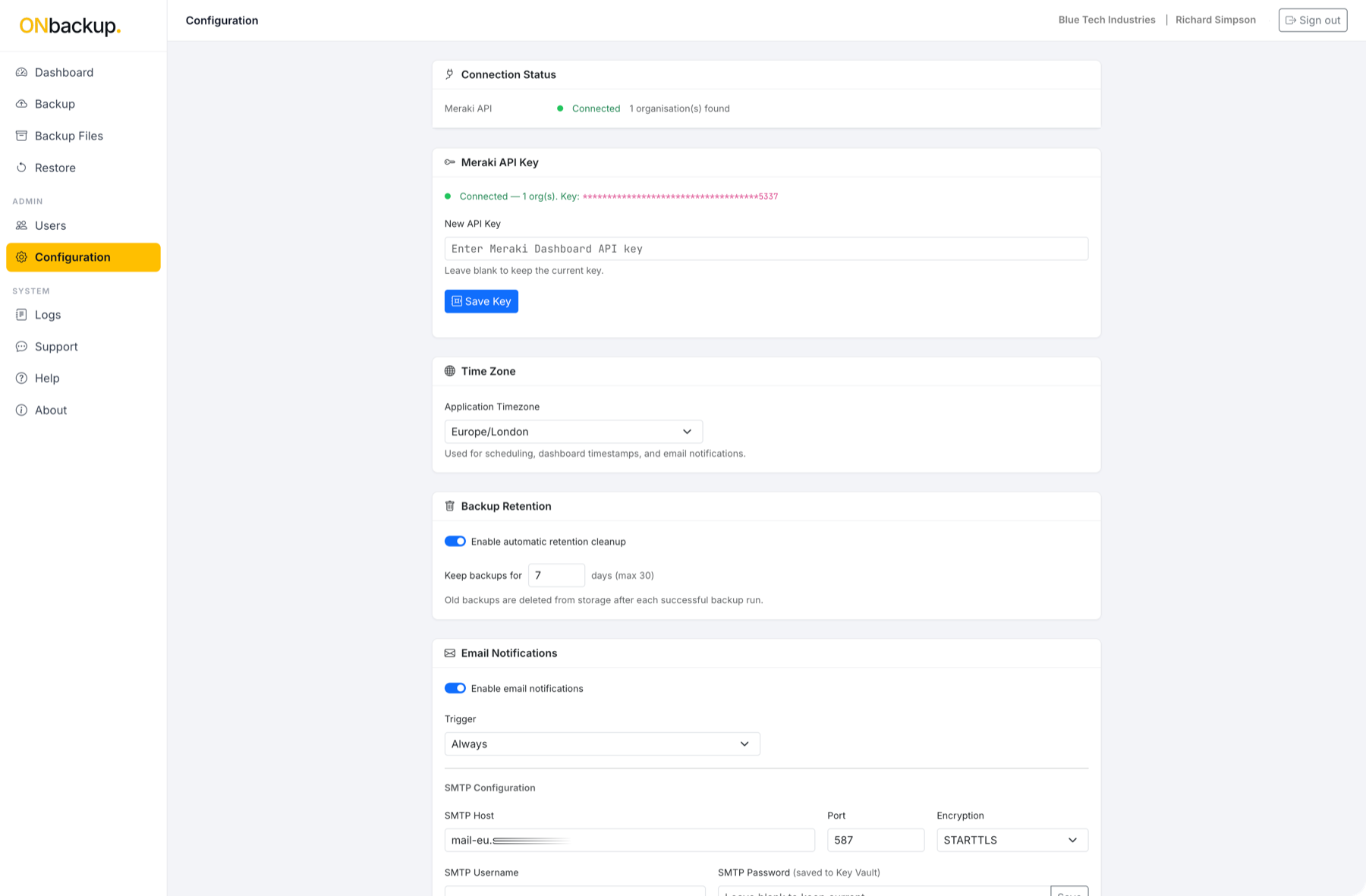
Connect your Meraki organisation in minutes.
Authorise your API access to your Meraki dashboard and ONbackup discovers every organisation and network automatically. No agents, no hardware.
Backup & scheduling
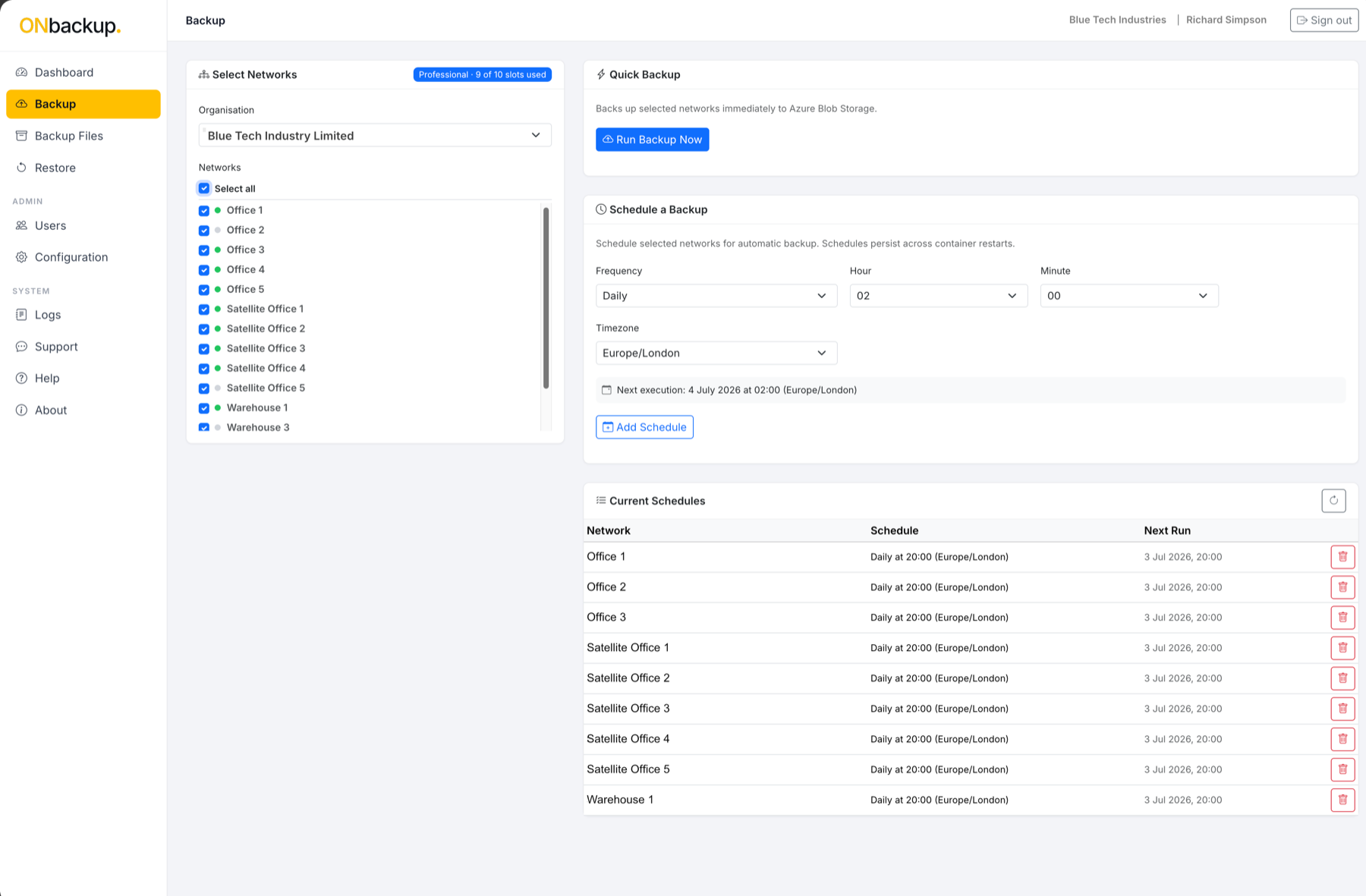
Choose what's backed up, and when.
Select networks per organisation, run an on-demand backup, or set a recurring schedule down to the hour and time zone — all from one screen.
Multi-organisation
One login, every Meraki organisation.
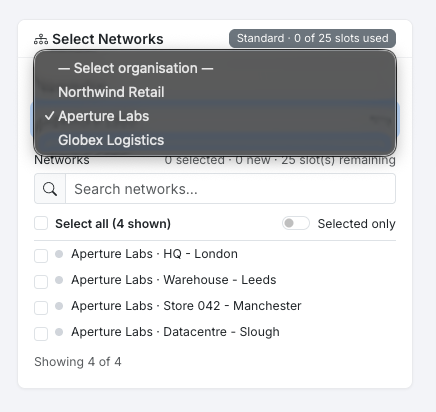
Switch between every Meraki organisation you manage from a single ONbackup account. Networks are searched and selected per organisation, and your plan's network slots are shared across all of them, just as at home for an in-house IT team running a few organisations as for an MSP managing many clients.
Version history
Every change, versioned.
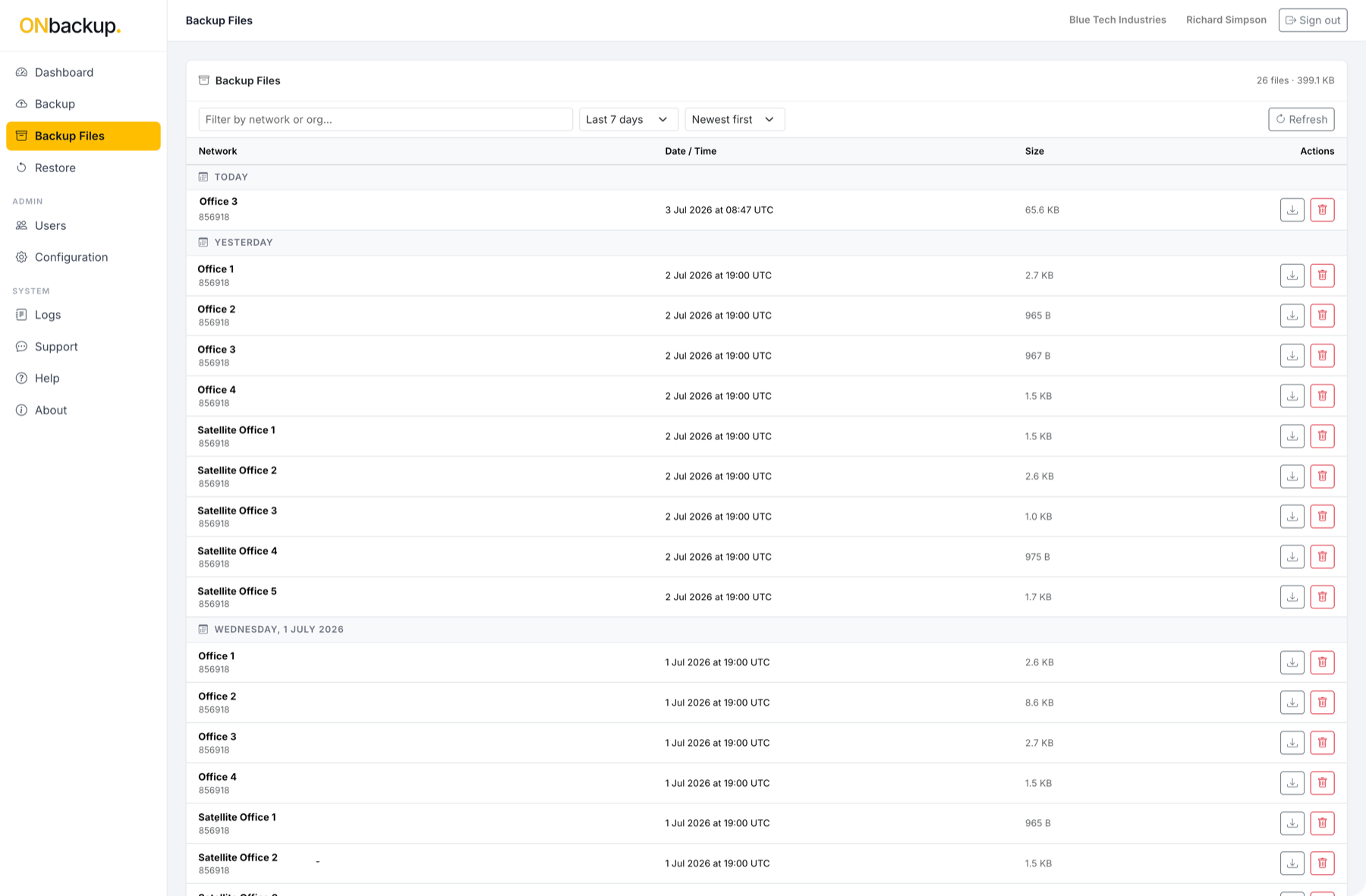
Each scheduled backup is a distinct, timestamped snapshot. Browse the history for any network and see exactly what changed between two points in time.
Restore
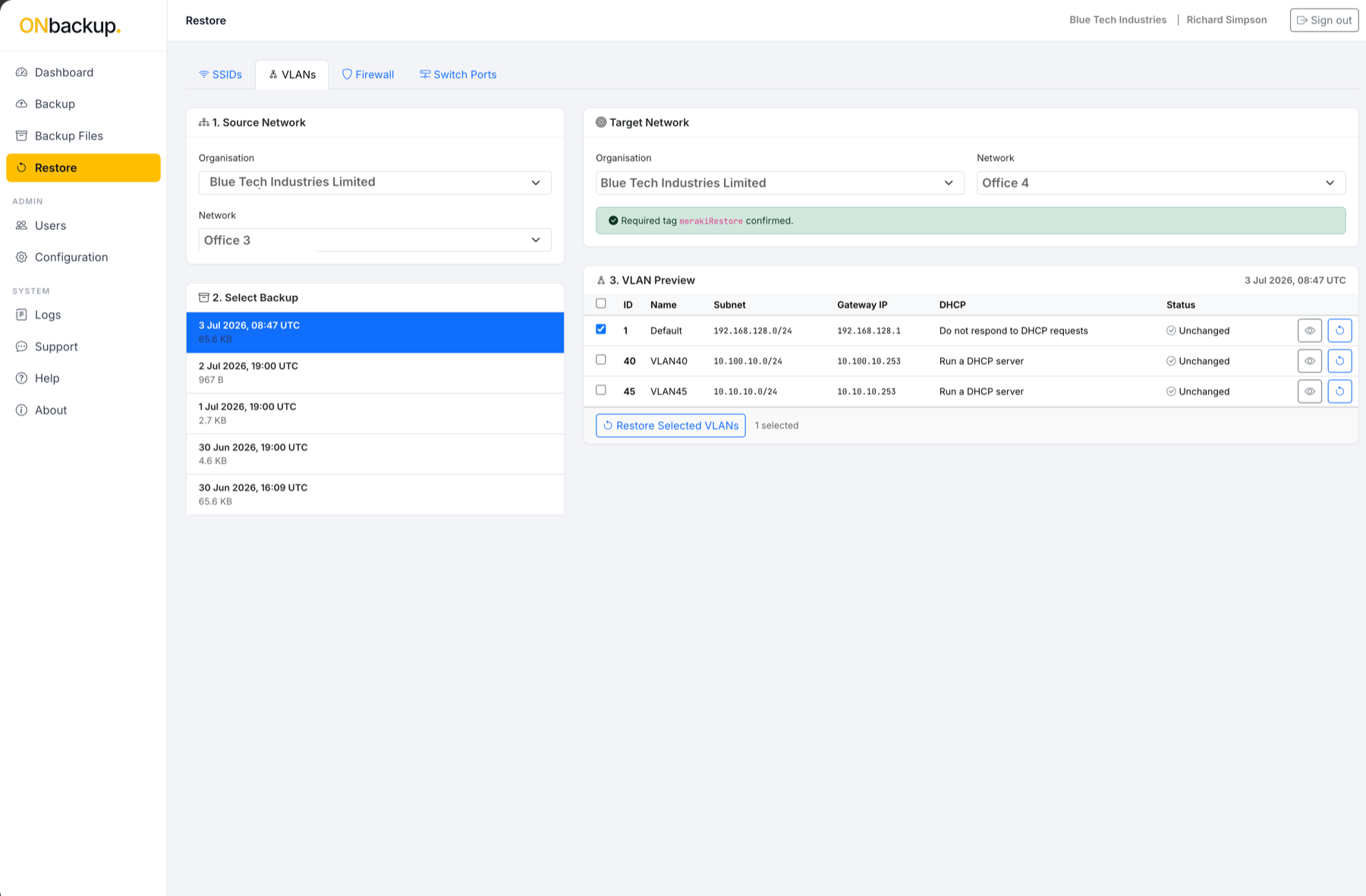
Restore a network, or a single change, in minutes.
Pick any previous snapshot and restore the whole network configuration, or roll back just SSIDs, VLANs, firewall rules or switch ports.
Snapback
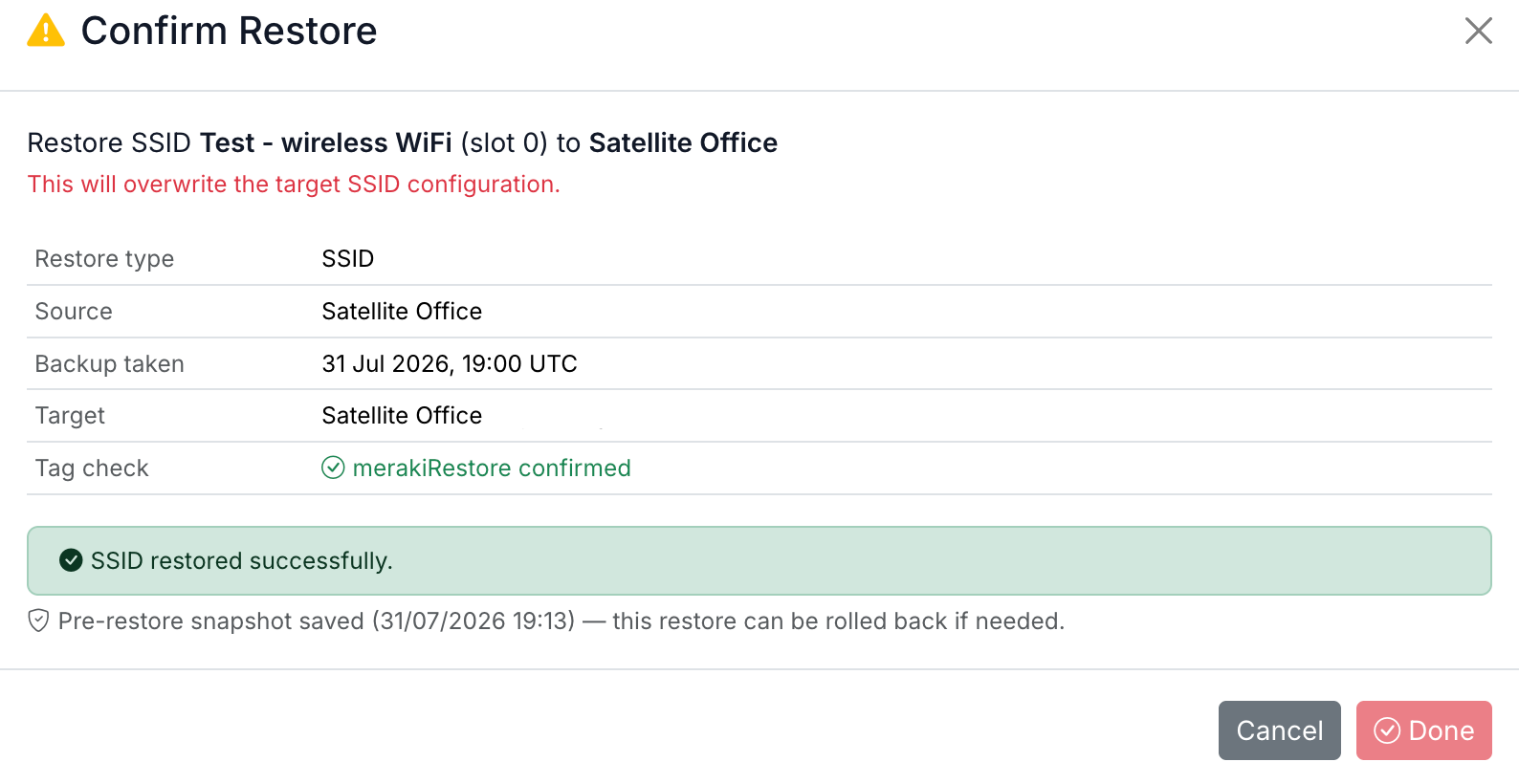
Every restore starts with a Snapback: a safety snapshot of the target, saved automatically the moment before any change is applied.
If a restore doesn't go the way you expected, roll back to exactly the state you were in before, no separate backup, no manual prep.
Compare
See exactly what changed, before you act.
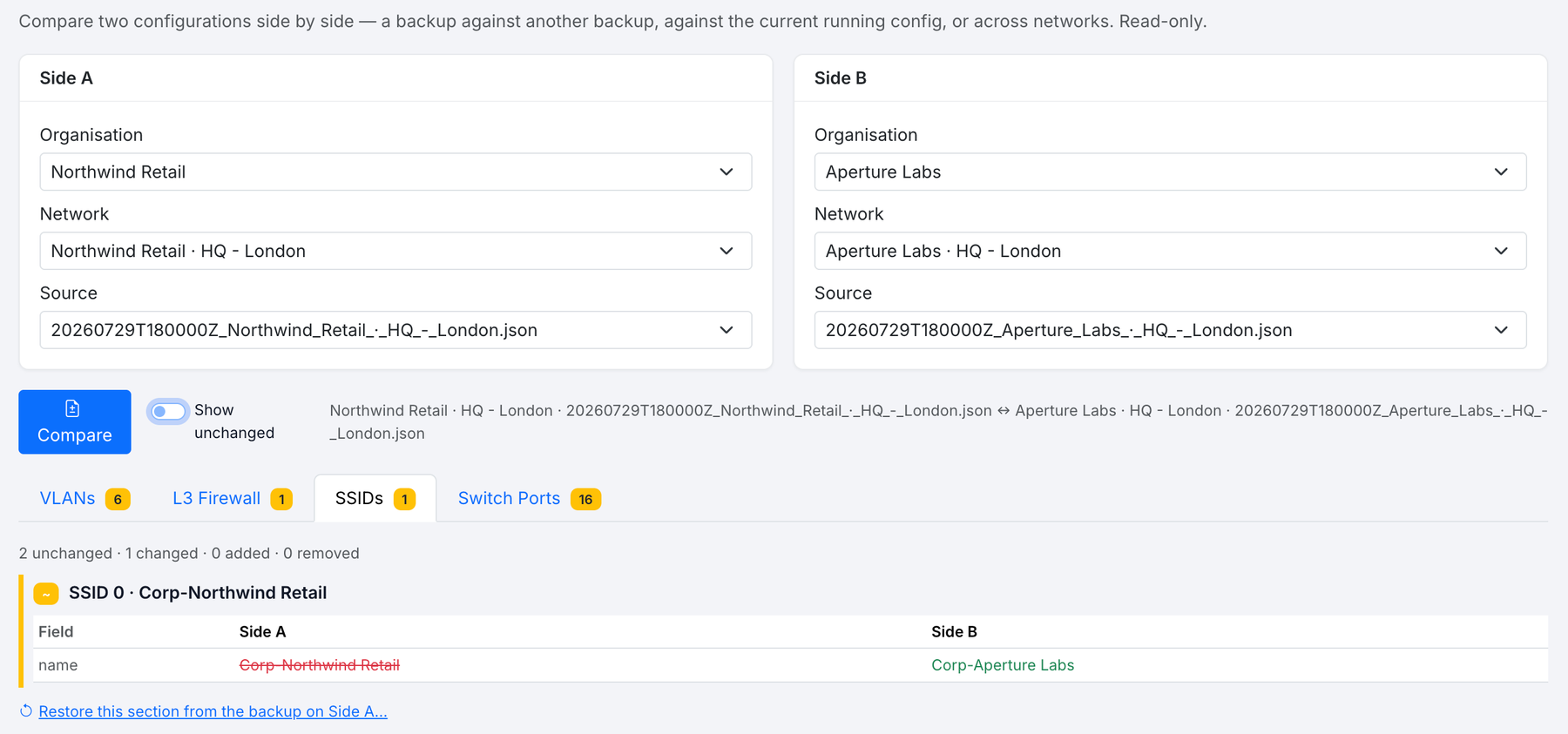
Compare any two configurations side by side: two backups, a backup against the current running configuration, or even across two different networks. Read-only, so comparing never risks changing anything.
Activity log
See who did what, and when.
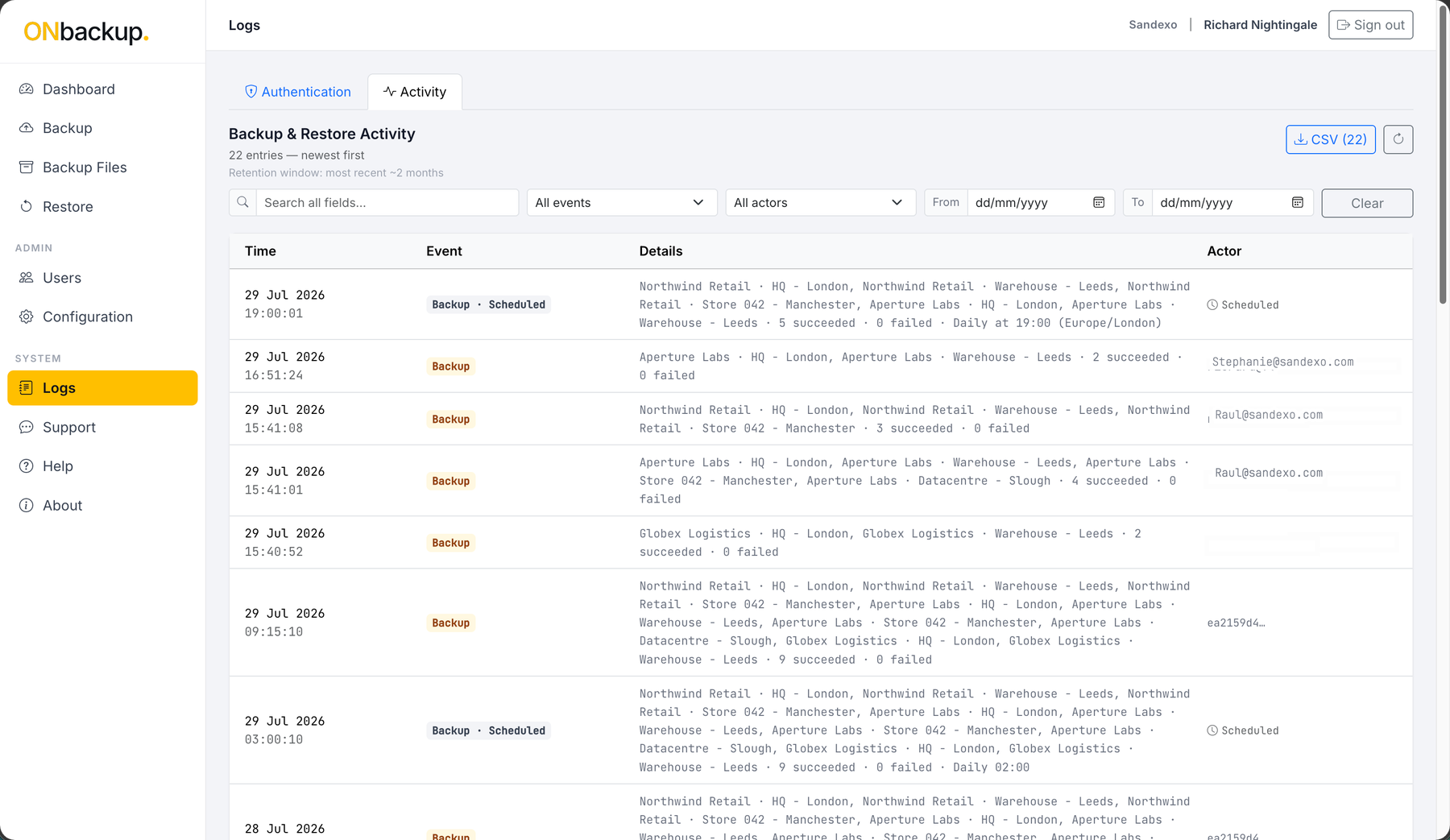
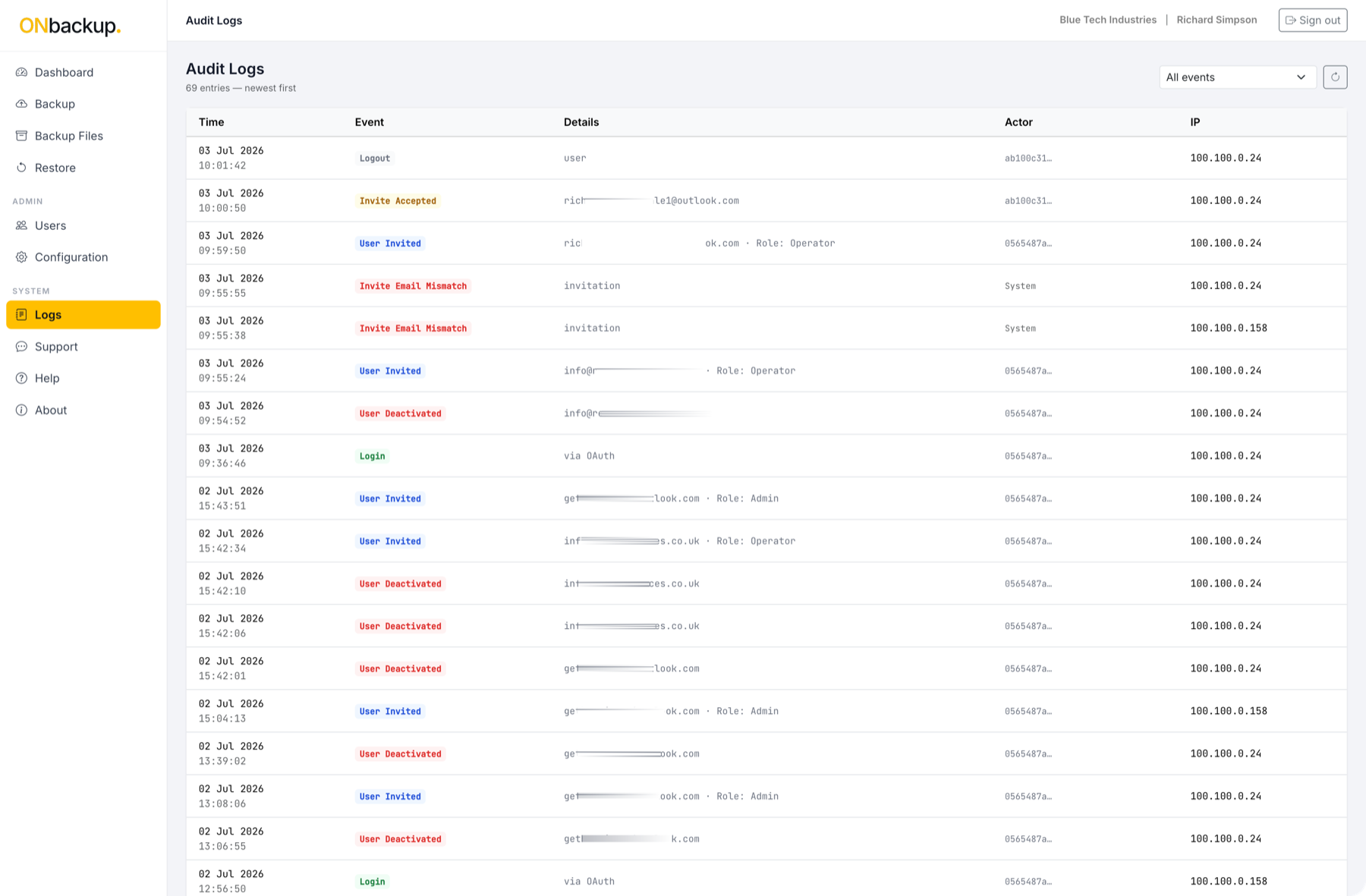
Every backup and restore is logged with actor attribution, a named user or "Scheduled" for automated runs, so you always know who, or what, triggered it. Search, filter, and export the full history to CSV.
Monitor & alerts
Catch drift the moment it happens.
Configuration changes outside a maintenance window are flagged immediately, so nothing slips through unnoticed.
Secure access
Secure by default, on every account.
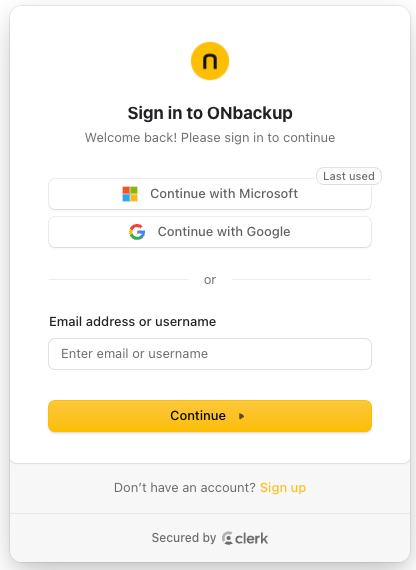
Authentication is powered by Clerk, an industry-leading identity platform, with multi-factor authentication on every sign-in. Email and password or single sign-on with Google or Microsoft work out of the box — additional identity providers and enterprise SSO configurations are available on request, adapted to your organisation's requirements.
Help & support
Answers close at hand, help when you need more.
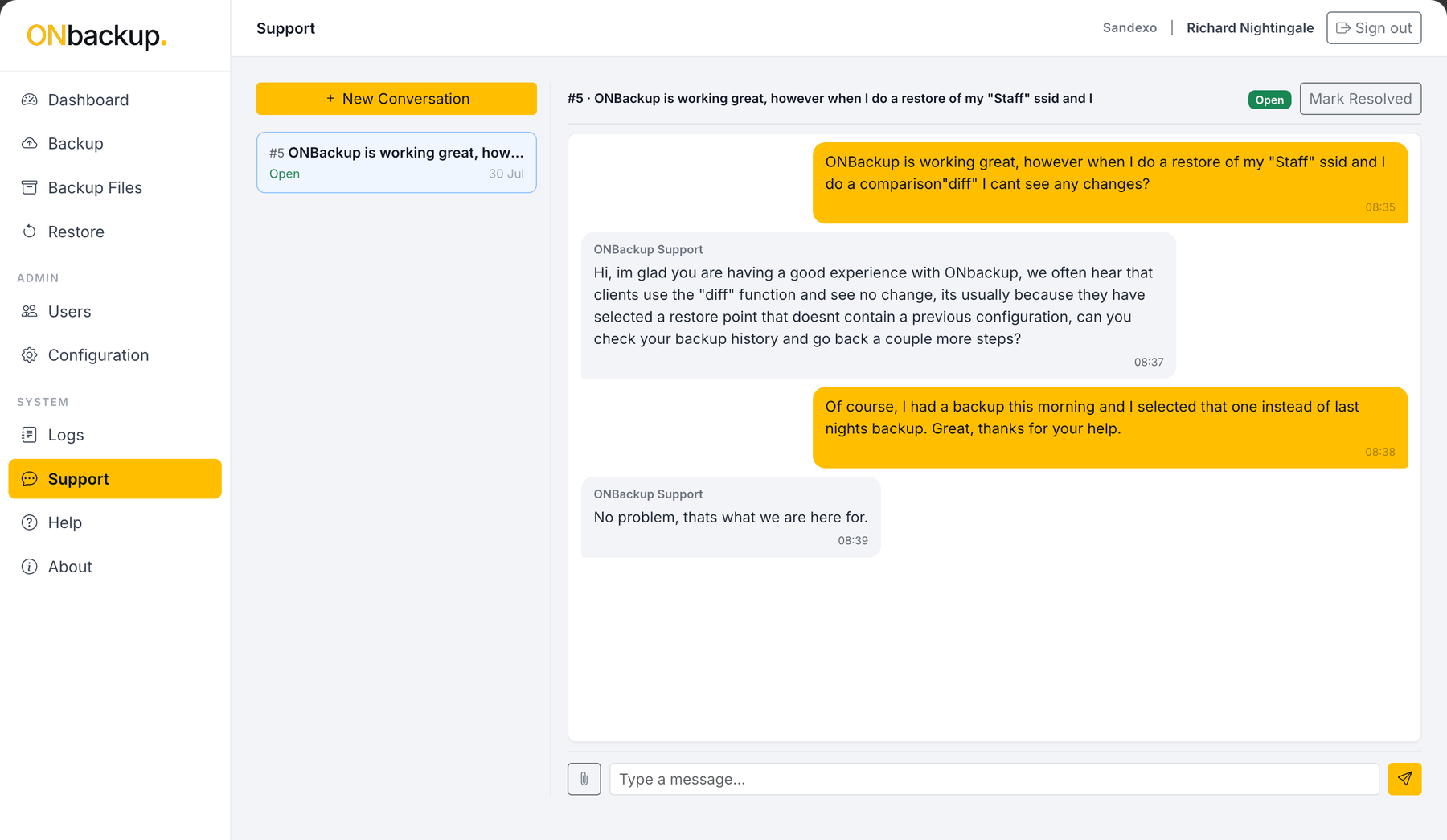
Ask our support team a question directly from inside ONbackup and get a real reply, tracked as Open until it's marked Resolved. A searchable Help & Documentation Centre covers setup, features, licensing and retention for when you'd rather self-serve.